Move guide
Move from MailPoet in about an hour
Six steps. Nobody has to re-subscribe, and links in emails you’ve already sent keep working.
Last updated
1. Install PigeonPress
Install it next to MailPoet; they don’t conflict. You need WordPress 6.5+ and PHP 8.1+.
wp plugin install pigeonpress --activateThe Get Started checklist opens and tracks what’s left to do. Fill in your sender name, address and postal address first.
2. Connect your email provider
In PigeonPress → Settings, pick Amazon SES, SMTP or your site’s existing mail setup. For SES, paste an access key with permission to send, then add the SNS endpoint so bounces and complaints come back automatically. Credentials are stored encrypted, or you can define them as constants in wp-config.php.
Set up a system cron job so the queue runs every minute:
* * * * * cd /path/to/site && wp pigeonpress queue run --quietSend yourself a test with wp pigeonpress test-email you@yoursite.com.
3. Run the MailPoet import
Open PigeonPress → Import and choose MailPoet. A dry run shows how many lists, fields and subscribers it found before anything changes.
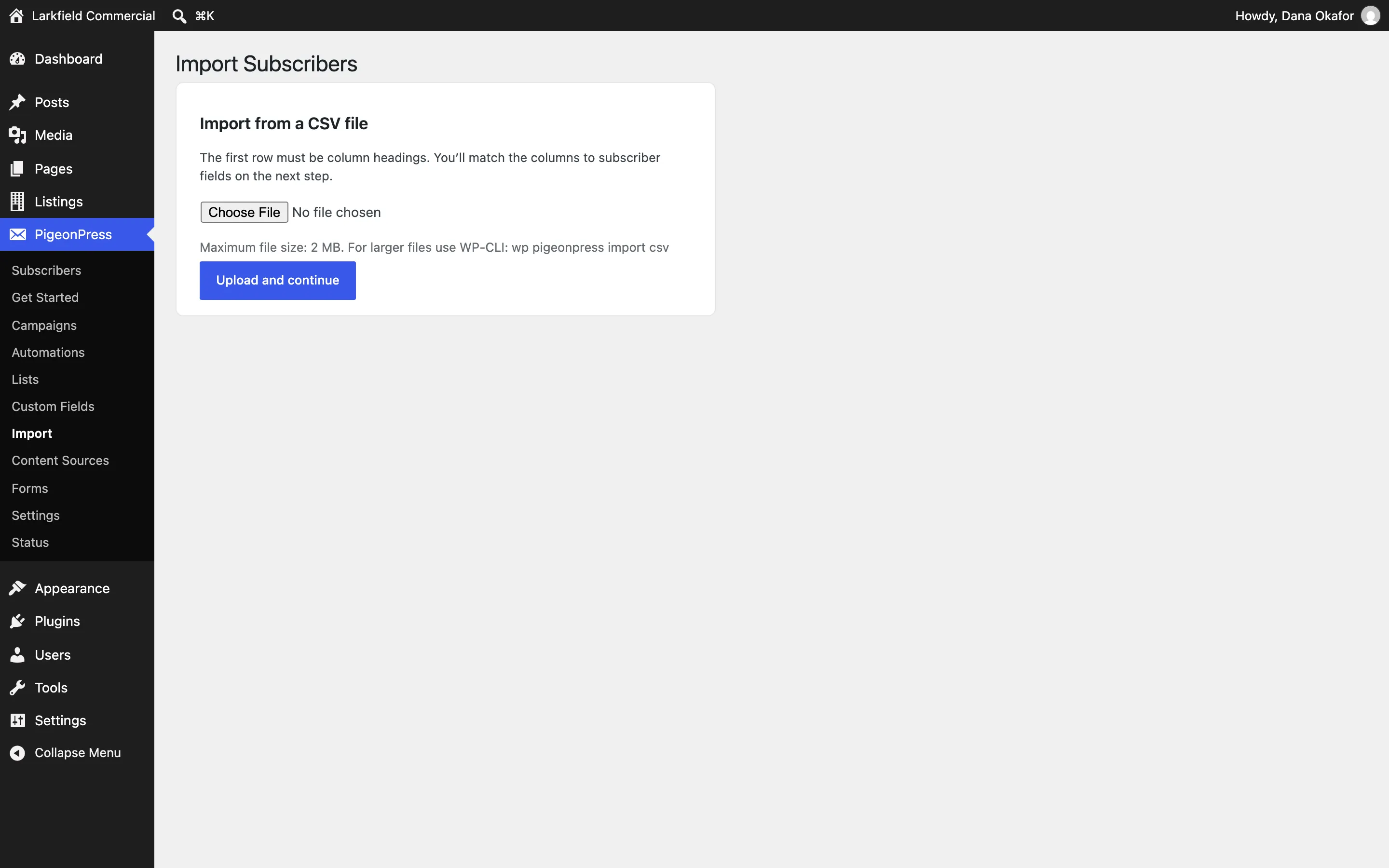
Or from the command line:
wp pigeonpress import mailpoet --dry-run
wp pigeonpress import mailpoet| From MailPoet | In PigeonPress |
|---|---|
| Lists you created | Lists, with the same members |
| Custom fields | Custom fields and every subscriber’s values |
| Subscribed and unconfirmed people | Same status, with signup date, signup IP and confirmation date |
| Unsubscribed and bounced people | Suppression list (never mailed) |
| People in MailPoet’s trash | Not imported, but their unsubscribes and bounces are still suppressed |
| Link tokens and tracked links | Copied, so old MailPoet emails keep working |
Re-running is safe: it only adds new people and fills blanks, and never undoes edits you made in PigeonPress.
4. Replace your signup forms
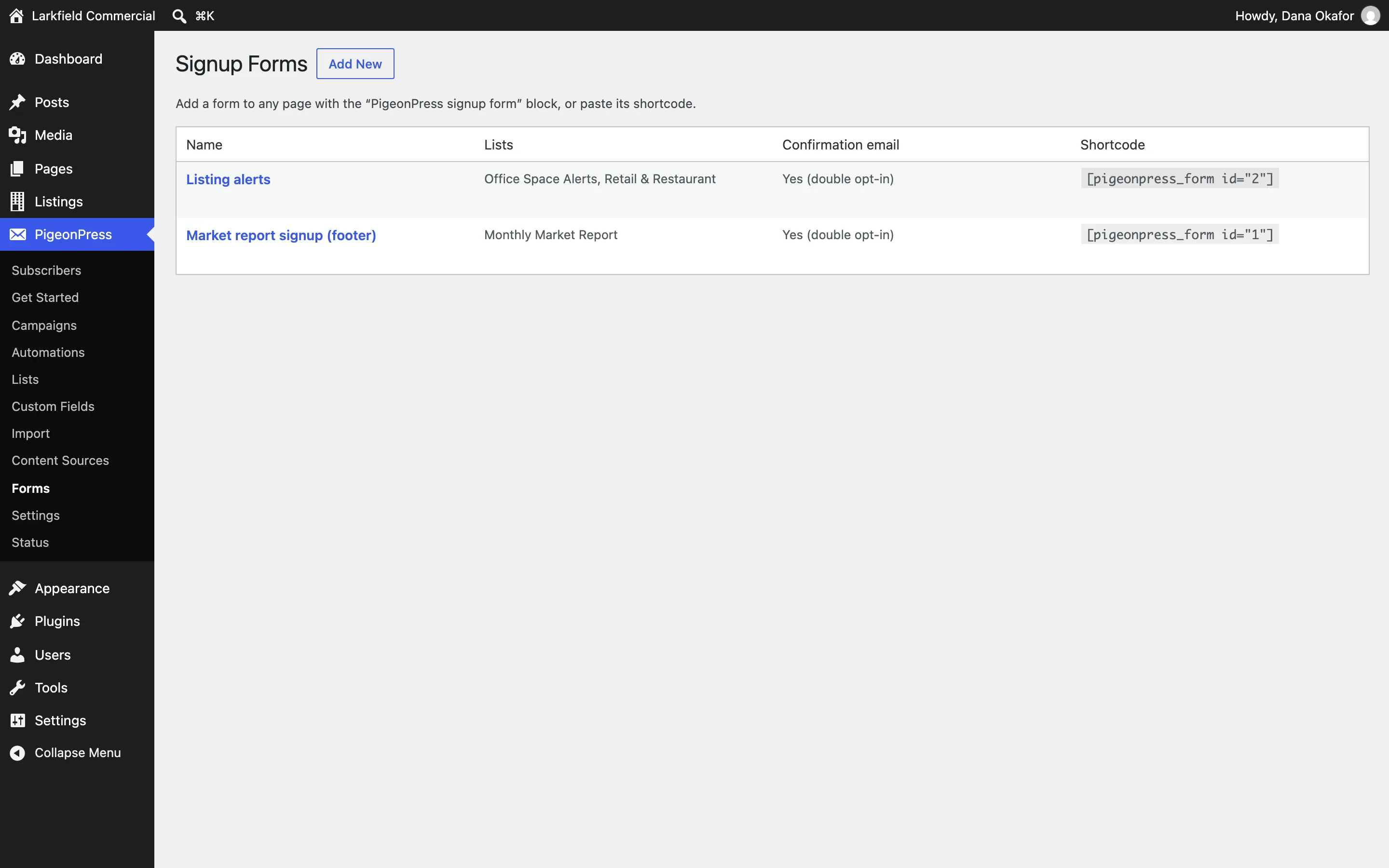
Create a form in PigeonPress → Forms, then swap MailPoet’s form for the PigeonPress signup form block or the [pigeonpress_form id="1"] shortcode. Double opt-in is on by default, spam protection works without a captcha, and forms work on cached pages. Using Contact Form 7? Add [pigeonpress newsletter list:newsletter "Send me the newsletter"] to your form.
5. Check your automations
Automations aren’t imported. If you rely on MailPoet’s welcome emails or post notifications, know that automations are coming in PigeonPress Pro: welcome emails, new-post notifications (instant or as daily, weekly or monthly digests) and re-engagement emails. Join the Pro waitlist to hear when it launches. Regular campaigns, scheduling and re-sends are all in the free plugin.
6. Deactivate MailPoet
Once your first PigeonPress campaign has gone out, deactivate MailPoet. Unsubscribe, manage-subscription and tracked links in emails MailPoet already sent are answered by PigeonPress from then on. Because the link data was copied, you can delete MailPoet’s tables later without breaking them.
Moving soon?
Get early access and we’ll send you the download the day it’s ready.